
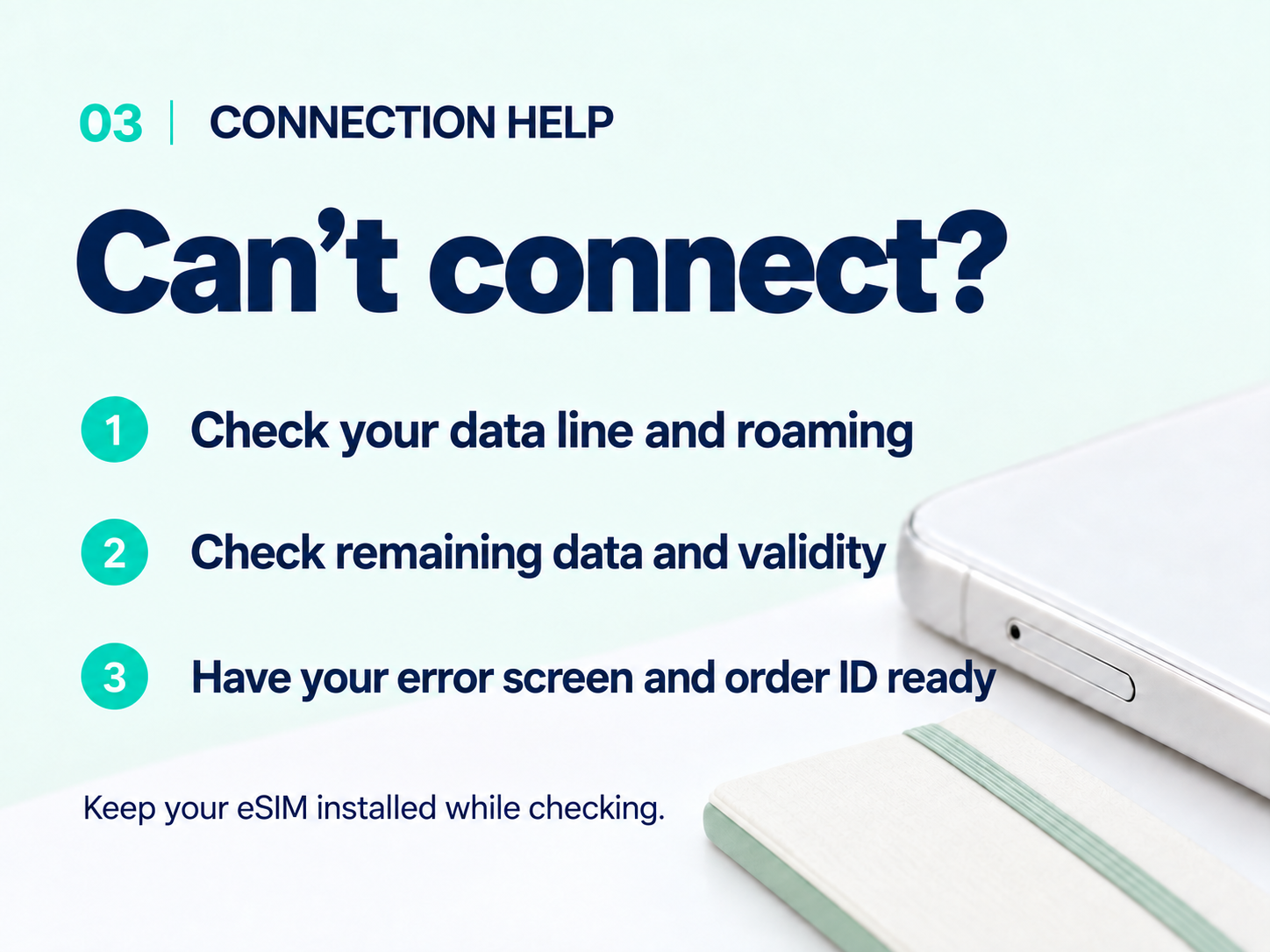
Installation error or no data?
If the eSIM was not added, use reliable Wi-Fi and review the installation guide. If a code says it was already used, first check whether the eSIM is listed in settings. Do not keep retrying the QR code or delete the eSIM. Save the error message.
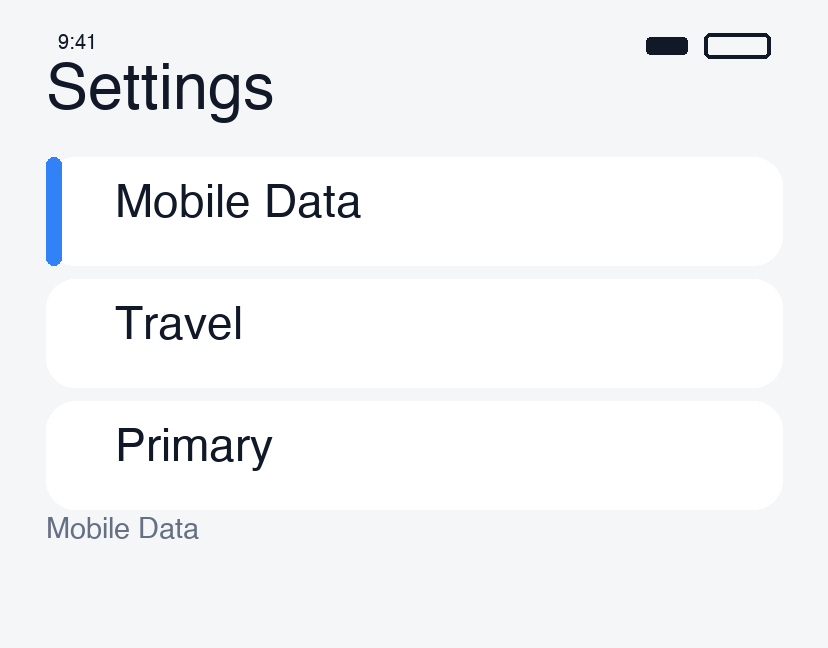
Check the line and roaming
- Open Settings → Cellular and make sure the travel eSIM is on.
- Select it as your mobile data line.
- Enable its data roaming if your plan requires it.
- Disable automatic data switching where offered to avoid switching to your usual SIM.
Check the plan and signal
In My eSIMs, check coverage, remaining data and validity. Move to a place with better reception if you are indoors or underground.
Briefly turn airplane mode on, then off and wait. If needed, restart the phone, turn Wi-Fi off and try loading a web page. If only one app fails, temporarily disconnect a VPN and try again.
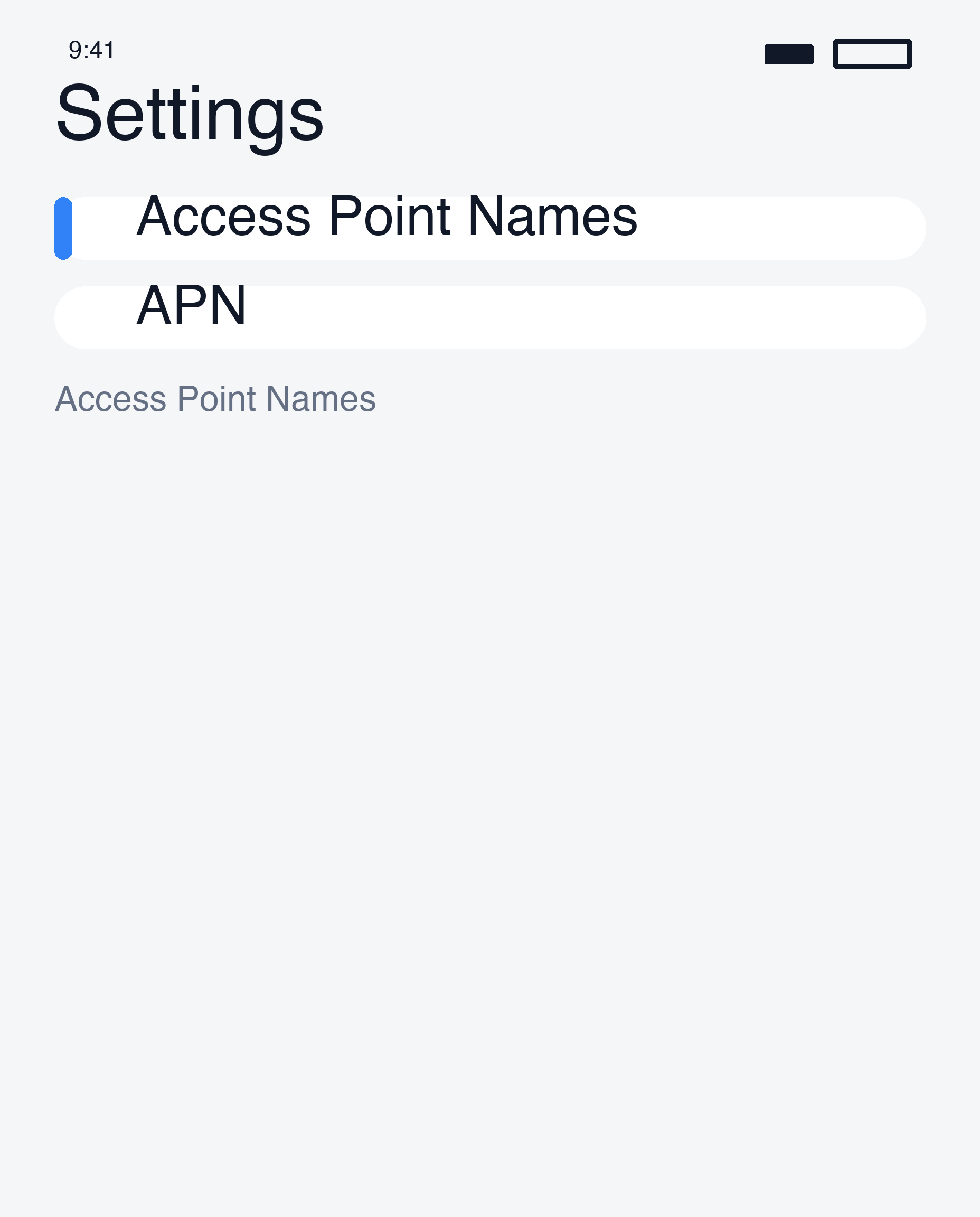
Use only supplied APN and network settings
- APN: enter a value only if your order supplies one. Do not guess values such as internet. Some devices do not allow editing.
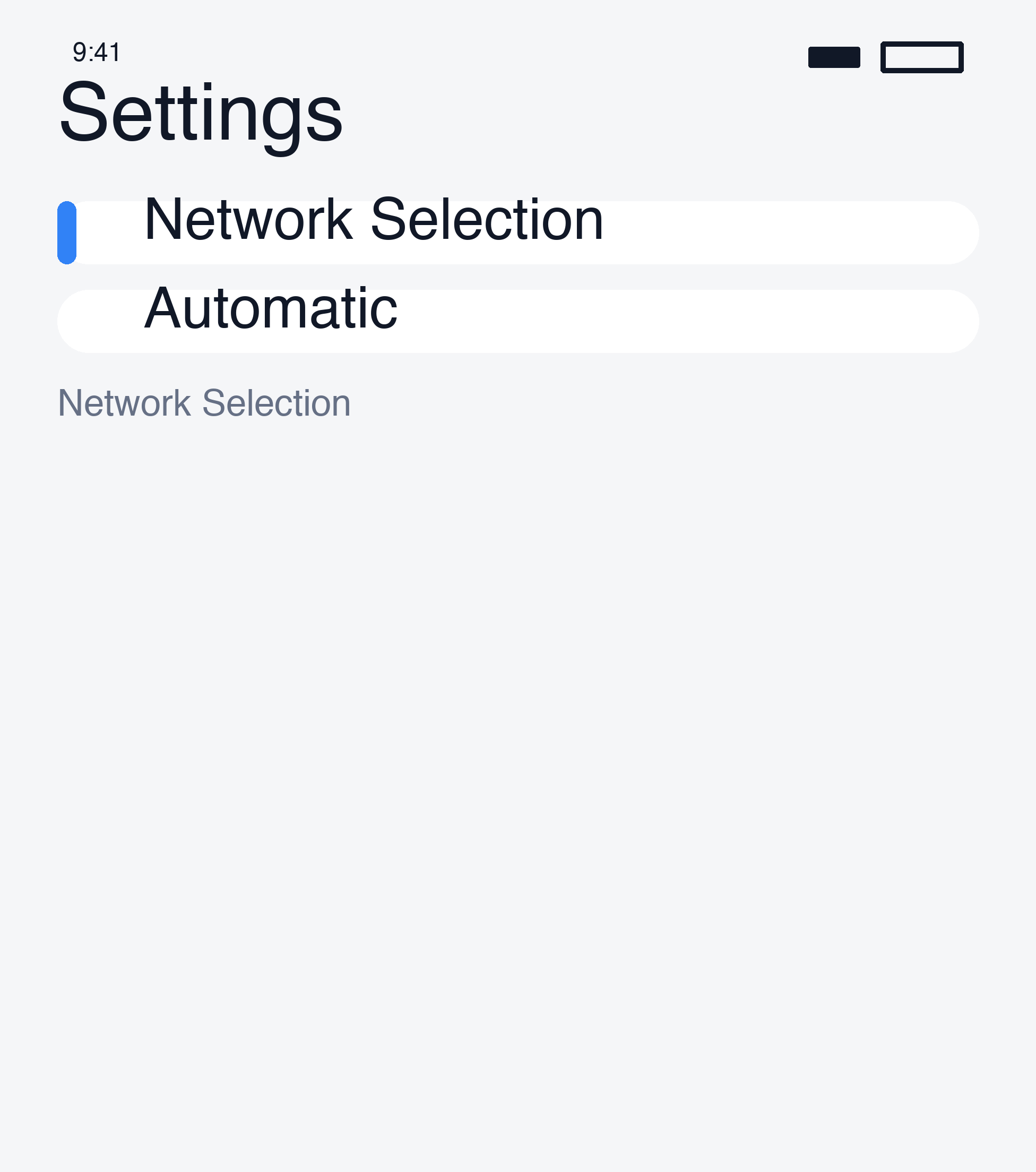
- Network: use automatic selection first. If instructed to select manually, choose a carrier supported by your plan; the strongest signal is not necessarily eligible.
Contact support
Send support your order number, country, device model, error message and settings screenshots. Keep QR and activation codes out of public posts.
Do not start with a network reset or eSIM deletion. You may lose saved settings or need a replacement eSIM.
Still need a hand?
Our support team can help you through it.