
📲Installation
How to Install eSIM on iPhone
#iPhone#SM-DP+
12 min read
At a glance
Install and activate eSIM on iPhone (official steps) and optimize for travel.
TL;DR (Travel eSIM setup)
- Home USIM: Primary voice/SMS (data roaming OFF recommended)
- Travel eSIM: For cellular data + data roaming ON
- In iPhone settings, set Allow Cellular Data Switching to OFF to avoid unwanted line switching and roaming.
Before installing (checklist)
- Wi‑Fi: Downloading/registering the eSIM profile is most stable on Wi‑Fi.
- Latest iOS: Recommended for menu/activation stability
- Carrier unlock: Locked devices may not work with overseas eSIMs
- QR code/code: Have QR on another device or check email for SM‑DP+ address and activation code
- Deletion warning: Many eSIMs are one-time install only (don’t delete during travel)
How to activate eSIM on iPhone (Apple official)
Apple describes these main methods:
- eSIM Quick Transfer (transfer number from previous iPhone)
- Carrier eSIM activation (carrier pre-assigns eSIM to iPhone)
- Add with QR code
- Other (link, carrier app, manual entry, etc.)
Travel eSIMs usually use QR code or manual entry (SM‑DP+).
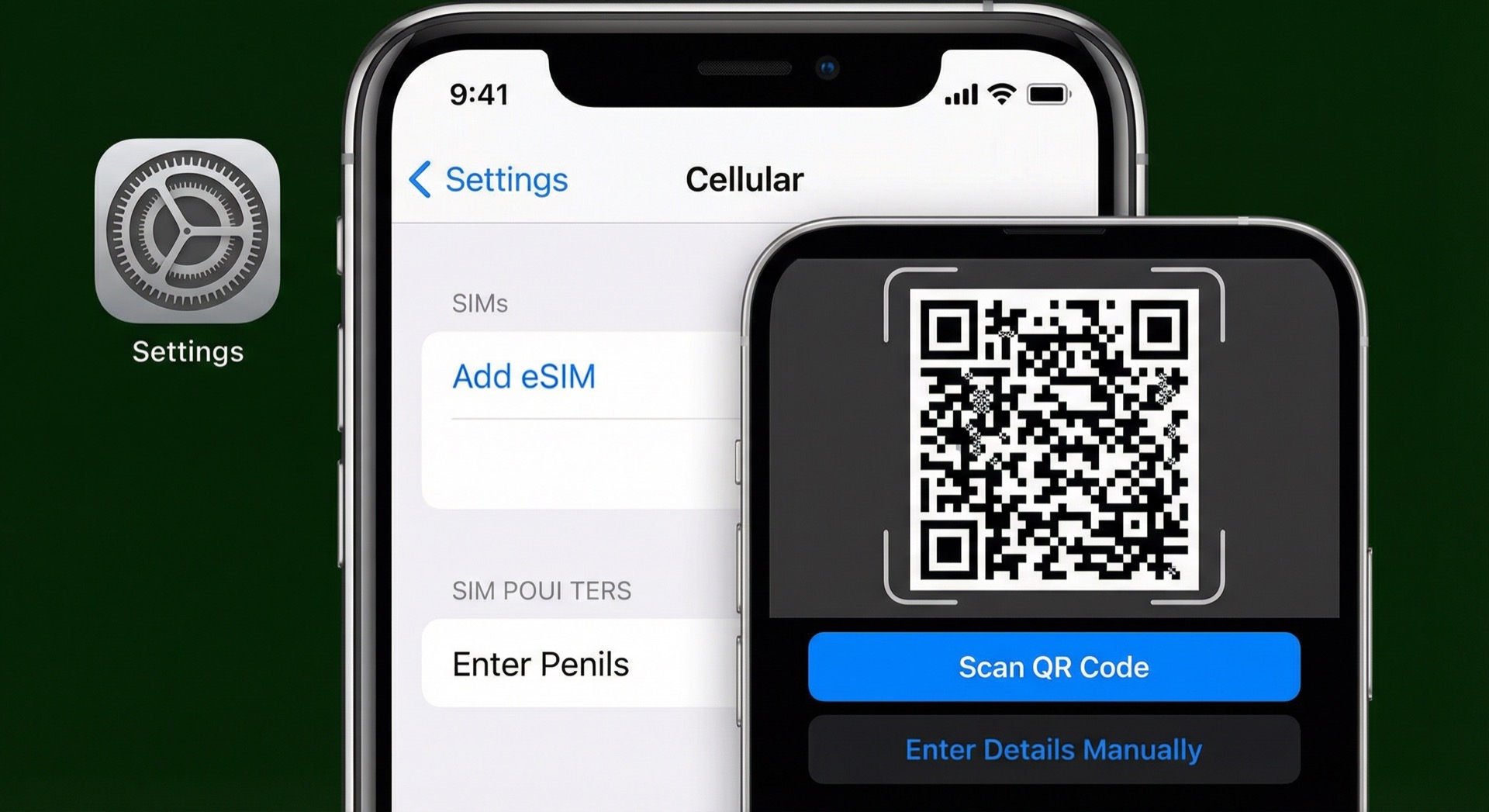
Add eSIM with QR code — step by step
- Go to Settings > Cellular (Mobile Data).
- Tap Add eSIM or Add Cellular Plan.
- Choose Use QR code and scan the QR.
- Tap Continue when prompted and finish installation.
- Enter any confirmation code / activation code from the provider if asked.
- Give the eSIM a label (e.g. Travel / Data / Japan).
If QR doesn’t work: “Enter details manually” (SM‑DP+)
- Go to Settings > Cellular > Add eSIM.
- Tap Enter details manually at the bottom.
- Enter the SM‑DP+ address and activation code from the provider.
After install: “Travel-optimized” (keep home number + data on eSIM)
1) Set cellular data to travel eSIM
- Cellular data: Select travel eSIM
- Allow Cellular Data Switching: OFF recommended
(to avoid unwanted line switching)
2) Data roaming ON only for travel eSIM
- Settings > Cellular > Select travel eSIM > Data roaming ON
- Keep data roaming OFF for home USIM
See How to turn off data roaming on home SIM
3) Keep primary voice/SMS (home number)
With dual SIM, a common setup:
- Default voice: Home USIM
- Messages / iMessage / FaceTime: Choose according to your usage
Common issues (iPhone)
“Activating” takes too long
- Try different Wi‑Fi or reboot and retry
- May be provider/carrier processing; wait a bit
QR code not recognized
- Max brightness, no reflection/blur
- Distance about 20–30 cm
- If still no: use manual entry (SM‑DP+).
No data abroad
- Is cellular data set to travel eSIM?
- Is data roaming ON for travel eSIM?
- Check network auto/manual and APN if needed
Full checklist: When eSIM data doesn’t work abroad
References (official)
- Apple: Set up eSIM on iPhone
