
Complete Samsung Galaxy eSIM Setup Guide (S24/S23/S22)
At a glance
Step-by-step Samsung Galaxy eSIM setup for S24, S23, S22 and more. QR code activation, troubleshooting and tips.
Complete Samsung Galaxy eSIM Setup Guide
This guide walks you through setting up an eSIM on Samsung Galaxy smartphones, from the S24 to older models including Z Fold and Flip series.
📱 eSIM-Compatible Galaxy Models
| Model | eSIM | Physical SIM | Notes |
|---|---|---|---|
| Galaxy S24 / S24+ / S24 Ultra | ✅ | ✅ | 2 eSIMs active simultaneously |
| Galaxy S23 series | ✅ | ✅ | 2 eSIMs active |
| Galaxy S22 series | ✅ | ✅ | Some regional restrictions |
| Galaxy S21 series | ✅ | ✅ | |
| Galaxy Z Fold 5 / Flip 5 | ✅ | ✅ | 2 eSIMs supported |
| Galaxy Z Fold 4 / Flip 4 | ✅ | ✅ | |
| Galaxy Note 20 / 20 Ultra | ✅ | ✅ | |
| Galaxy S10 / S10+ | ✅ | ✅ | First Galaxy with eSIM |
⚠️ Note: Some carrier-locked or region-specific models may have eSIM disabled. Check with your carrier before purchasing.
🔍 Before You Start
- Android version: Android 10 or later recommended. Go to Settings → Software Update
- Carrier unlock: Settings → General Management → About Device → SIM Lock Status must show "Not locked"
- Wi-Fi connection: Required for eSIM activation
- QR code: Display the QR code from your purchase email on another device
📲 Method 1: QR Code Scan (Recommended)
Galaxy S24/S23/S22 (One UI 6/5/4)
Step 1. Open Settings
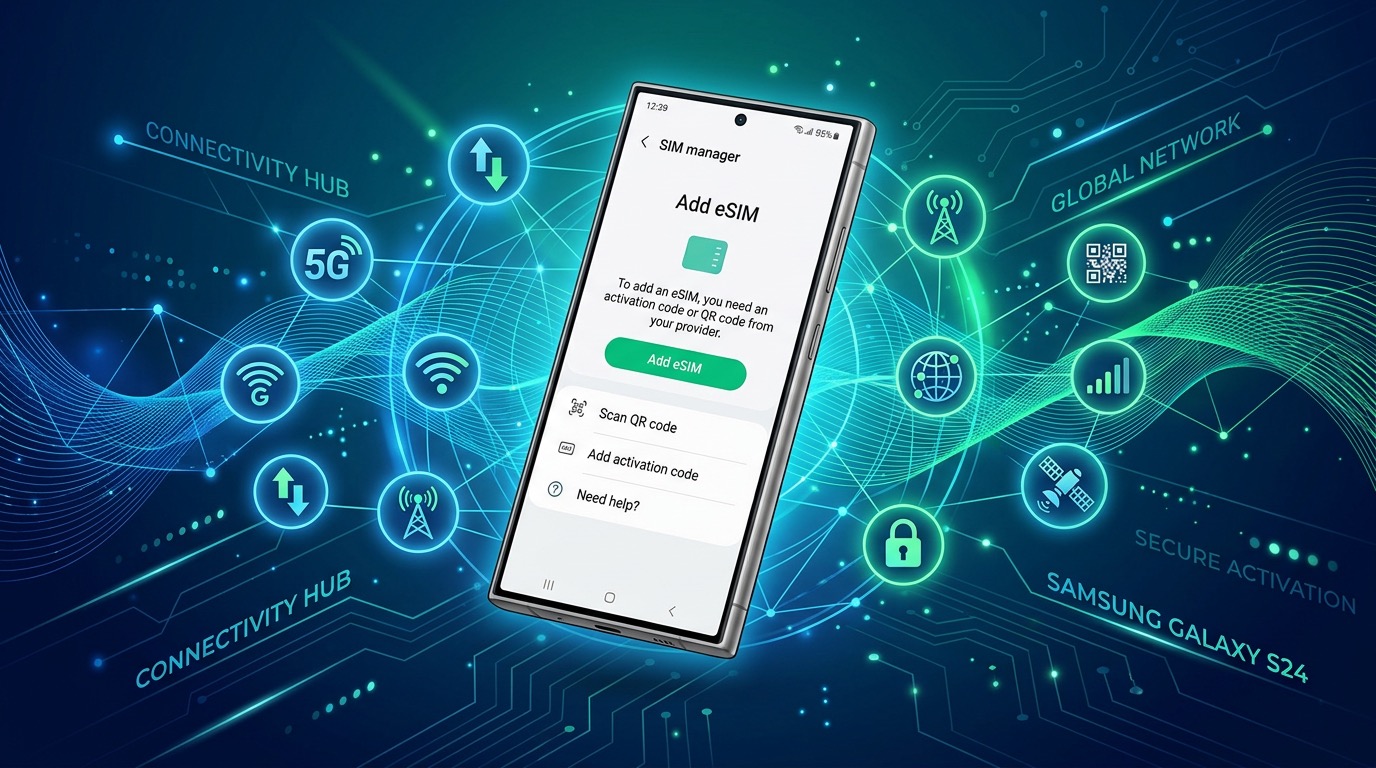
Step 2. Go to Connections → SIM Manager
Step 3. Tap "+" in the top right → "Add eSIM"
Step 4. Select "Scan QR code" → Scan your eSIM provider's QR code
Step 5. Confirm plan details → "Confirm" / "Activate" → Set a label (e.g., "Travel eSIM") → "Done"
Step 6. Set Default Data:
- Settings → Connections → SIM Manager → Mobile data → Select your eSIM
✍️ Method 2: Activation Code Entry
Step 4 (different): Select "Enter activation code" and input:
- SM-DP+ Address: Provider's server address
- Activation Code: From your purchase email
🌐 Enable Data Roaming
Required for using data overseas:
- Settings → Connections → Mobile Networks
- Toggle Data Roaming ON
- Or: SIM Manager → tap the eSIM → enable Data Roaming
❓ FAQ
Q: Why can't I find the eSIM option on my Galaxy?
Your model may be carrier-locked or a region-specific variant without eSIM support. Galaxy S21 and later support eSIM on most carriers worldwide.
Q: Can I use both physical SIM and eSIM simultaneously?
Yes! Dual SIM is supported. In SIM Manager, set each SIM's purpose: e.g., physical SIM for calls, eSIM for data.
Q: eSIM shows "not recognized" — what to do?
Restart device → check QR code validity (usually 24–72 hours) → reset network settings → contact your eSIM provider.
Q: How do I delete an eSIM?
Settings → Connections → SIM Manager → tap the eSIM → Delete.
✅ Quick Checklist
- Confirm Galaxy model supports eSIM
- Update to latest Android
- Verify device is unlocked
- Connect to Wi-Fi
- Settings → Connections → SIM Manager → + → Add eSIM → Scan QR
- Set as Default Data line
- Enable Data Roaming
Compare and buy eSIM plans for 200+ countries at esimoa.com →
