
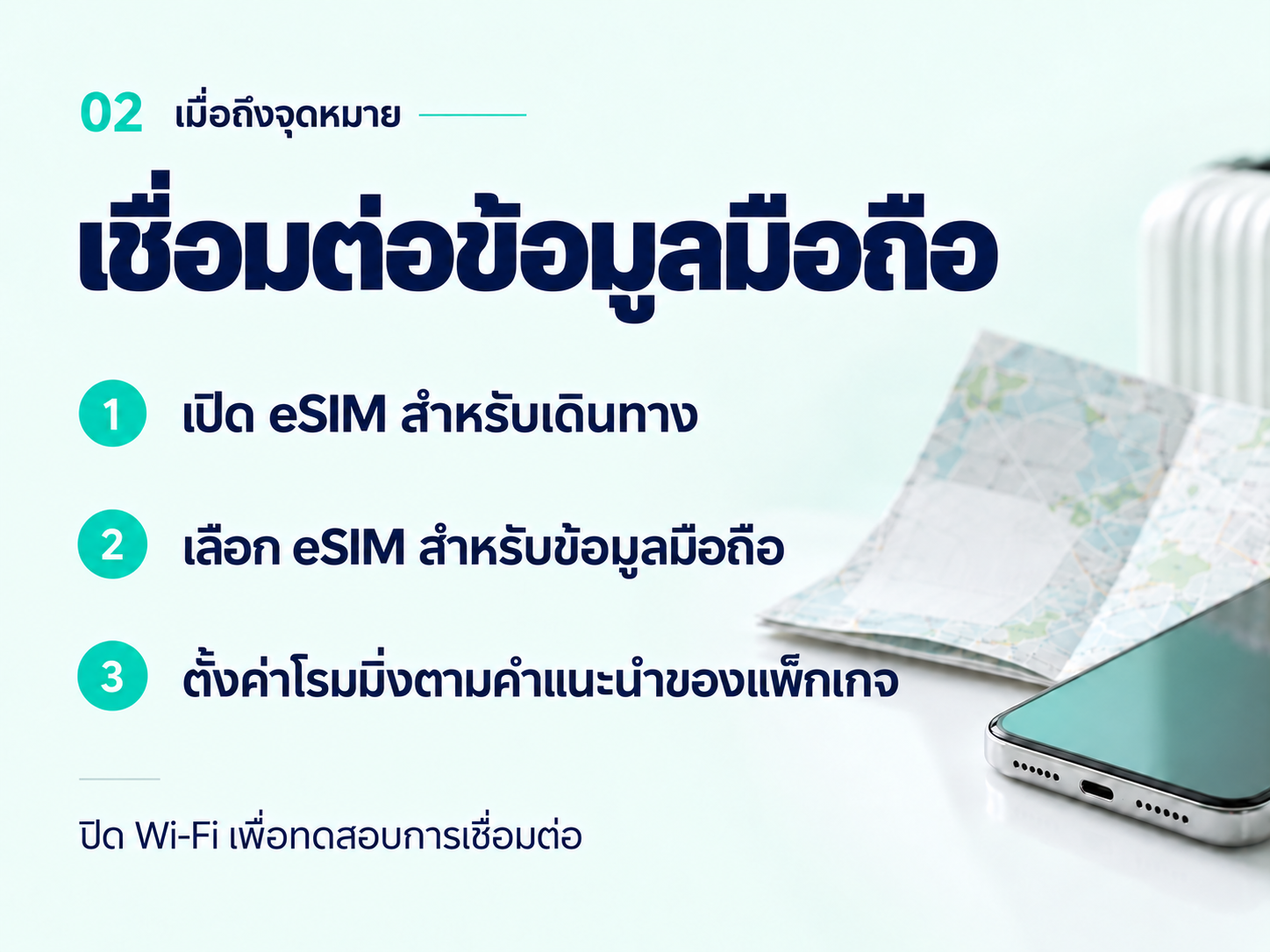
Check your plan first
In My eSIMs, confirm that your destination is covered and that you have data and validity remaining. Not installed yet? Start with iPhone or Android.
Select the data line
- iPhone: Settings → Cellular → your travel eSIM → enable Turn On This Line. Under Cellular Data, choose the travel eSIM.
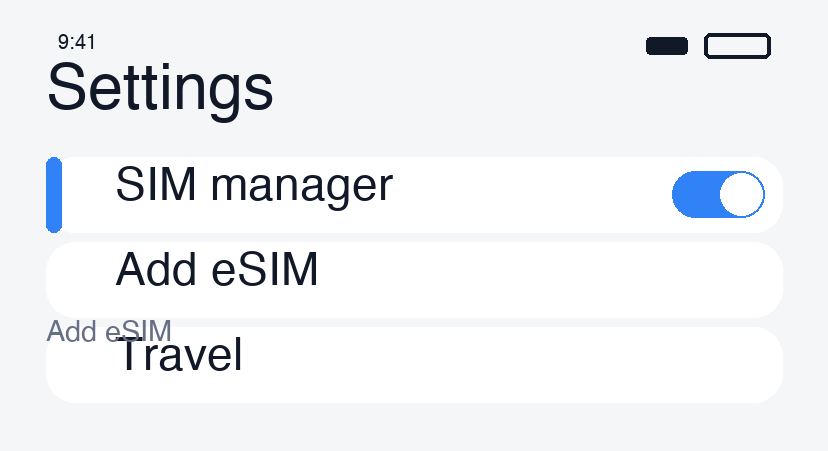
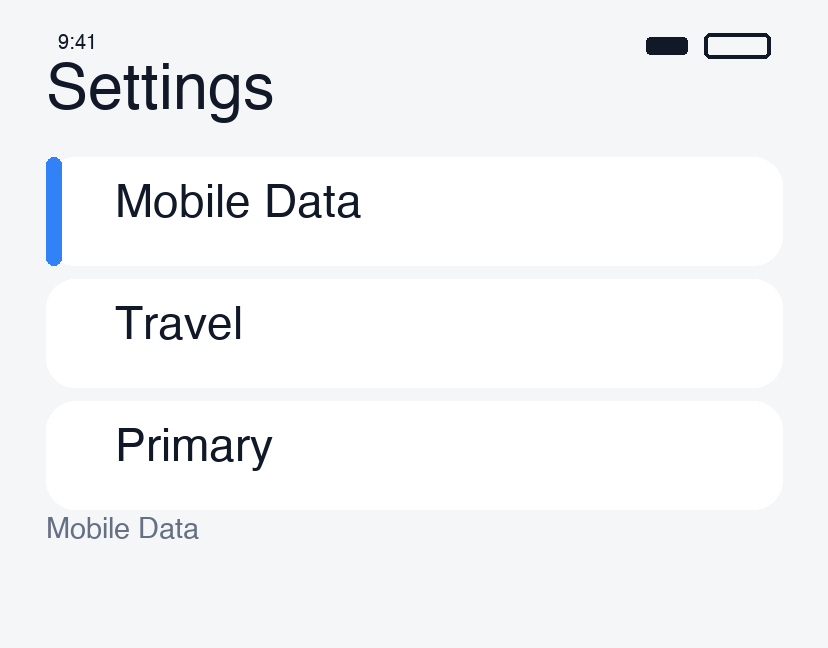
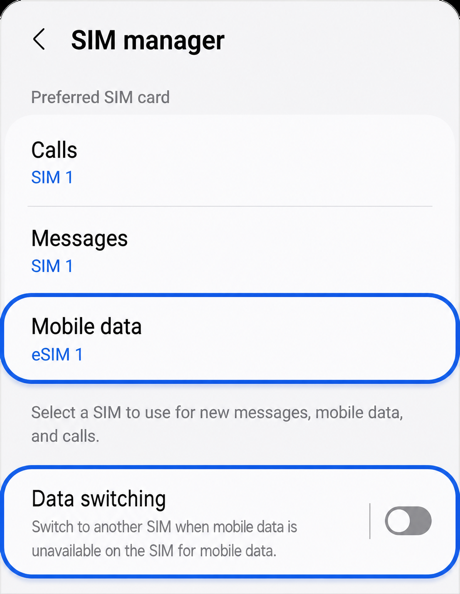
- Android (Samsung Galaxy example): Settings → Connections → SIM manager → enable the travel eSIM, then select it for Mobile data.
Menu names may differ by device and OS.
Check roaming settings
| Item | Setting to check |
|---|---|
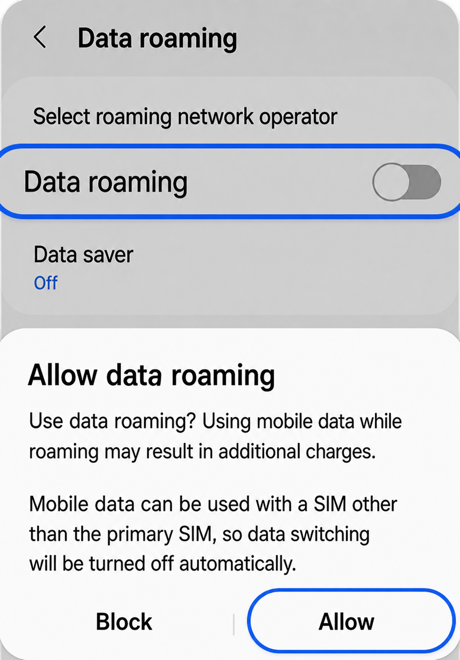
| Travel eSIM | Enable data roaming if the plan requires it. Many travel eSIMs need this. |
| Usual SIM | Turn off data roaming to avoid unwanted roaming data usage. |
| Automatic data switching | Turn it off where available and keep the travel eSIM selected. |
You may keep your usual SIM active for calls and texts. Turning off data roaming does not prevent home-carrier charges for voice calls or other services. Check your carrier’s terms.
Test the connection
- Turn off airplane mode and allow time to connect.
- Briefly disable Wi-Fi and open a web page. Signal bars alone do not confirm working data.
- If it fails, reconnect to Wi-Fi and follow the iPhone checks or Android checks.
Change APN or select a network manually only when your plan instructs you to. Keep the eSIM installed.
ถัดไปคู่มือทั้งหมด
ยังต้องการความช่วยเหลือไหม?
ทีมช่วยเหลือของเราพร้อมช่วยคุณ