TarifeTarifAnrufeVPNVergleichenAnleitungBlogHilfeMein Konto
Alle Anleitungen
iPhone · iOSAndroid

iPhone: connection checks

Check your line, roaming and plan in order. Keep the eSIM installed.

Aktualisiert 2026.10.024 Min. Lesezeit

Zu einem Schritt springen
  1. 01Installation error or no data?
  2. 02Check the line and roaming
  3. 03Check the plan and signal
  4. 04Use only supplied APN and network settings
  5. 05Contact support
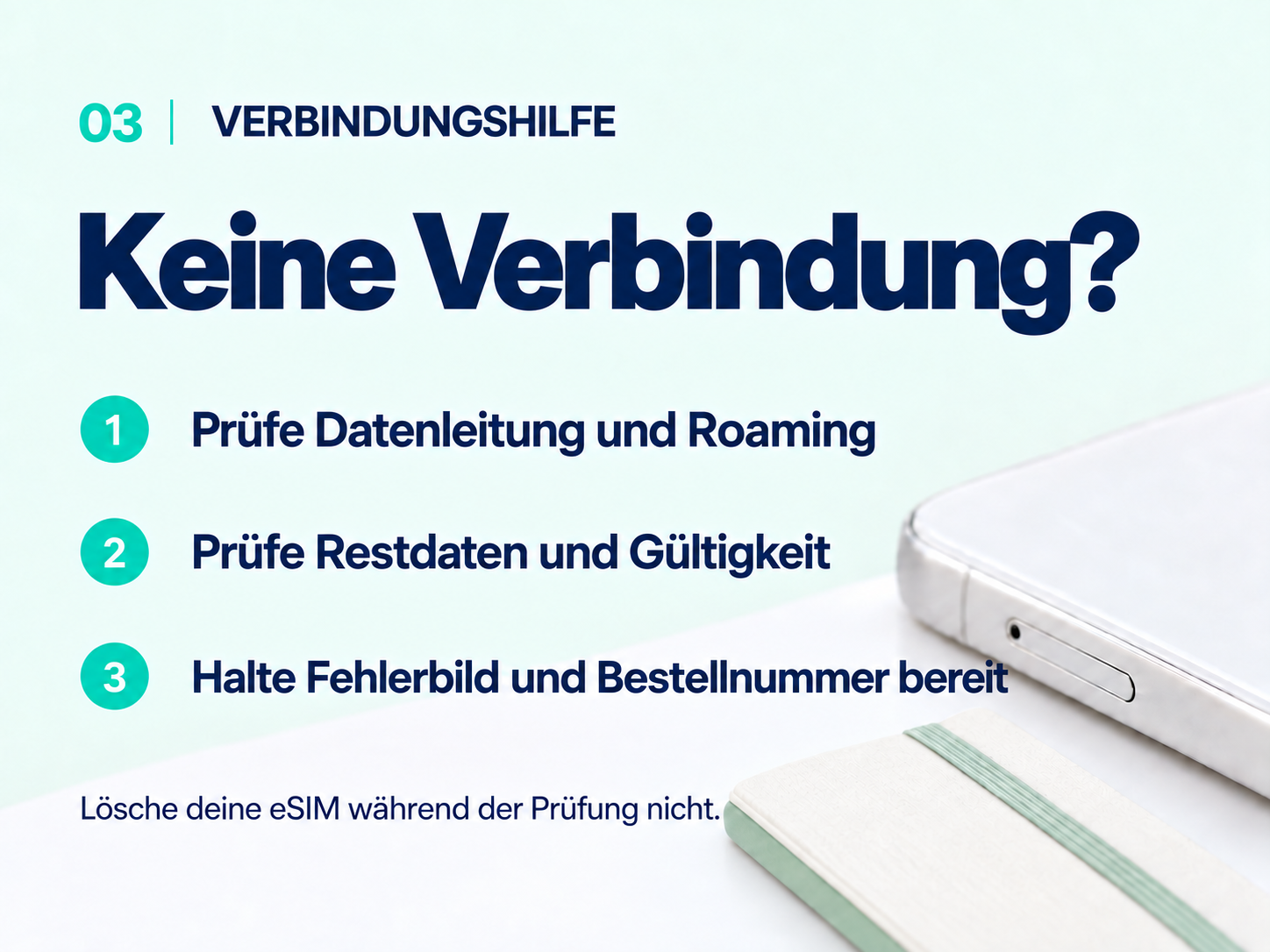
Connection help: check your data line, roaming, data balance and validity. Keep your eSIM installed and have your error screen and order ID ready.
Bevor du startest Vollständiges Bild ansehen ↗

Installation error or no data?

If the eSIM was not added, use reliable Wi-Fi and review the installation guide. If a code says it was already used, first check whether the eSIM is listed in settings. Do not keep retrying the QR code or delete the eSIM. Save the error message.

Check the line and roaming

  1. Open Settings → Cellular and make sure the travel eSIM is on.
  2. Select it as your mobile data line.
  3. Enable its data roaming if your plan requires it.
  4. Disable automatic data switching where offered to avoid switching to your usual SIM.
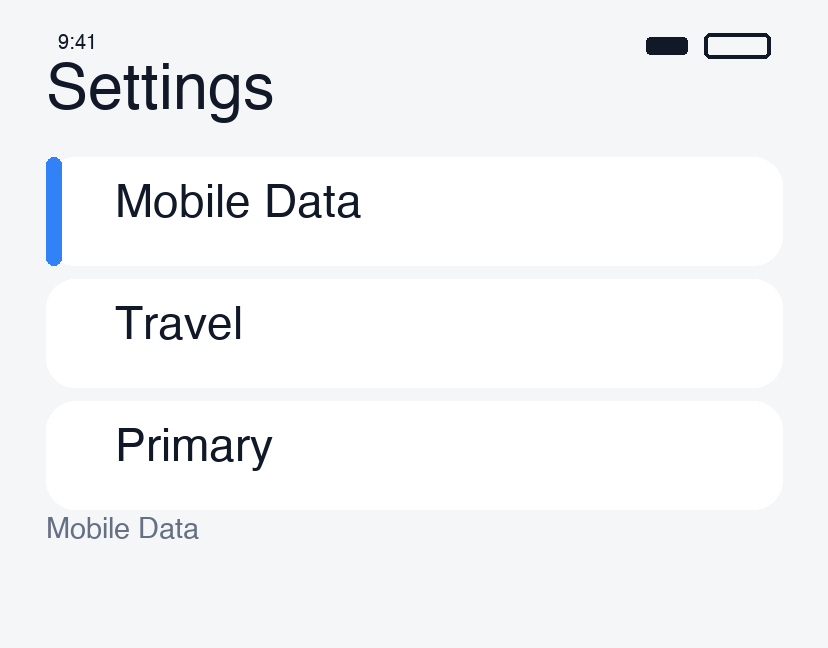
Check the line and roaming · 1

Check the plan and signal

In My eSIMs, check coverage, remaining data and validity. Move to a place with better reception if you are indoors or underground.

Briefly turn airplane mode on, then off and wait. If needed, restart the phone, turn Wi-Fi off and try loading a web page. If only one app fails, temporarily disconnect a VPN and try again.

Use only supplied APN and network settings

  • APN: enter a value only if your order supplies one. Do not guess values such as internet. Some devices do not allow editing.
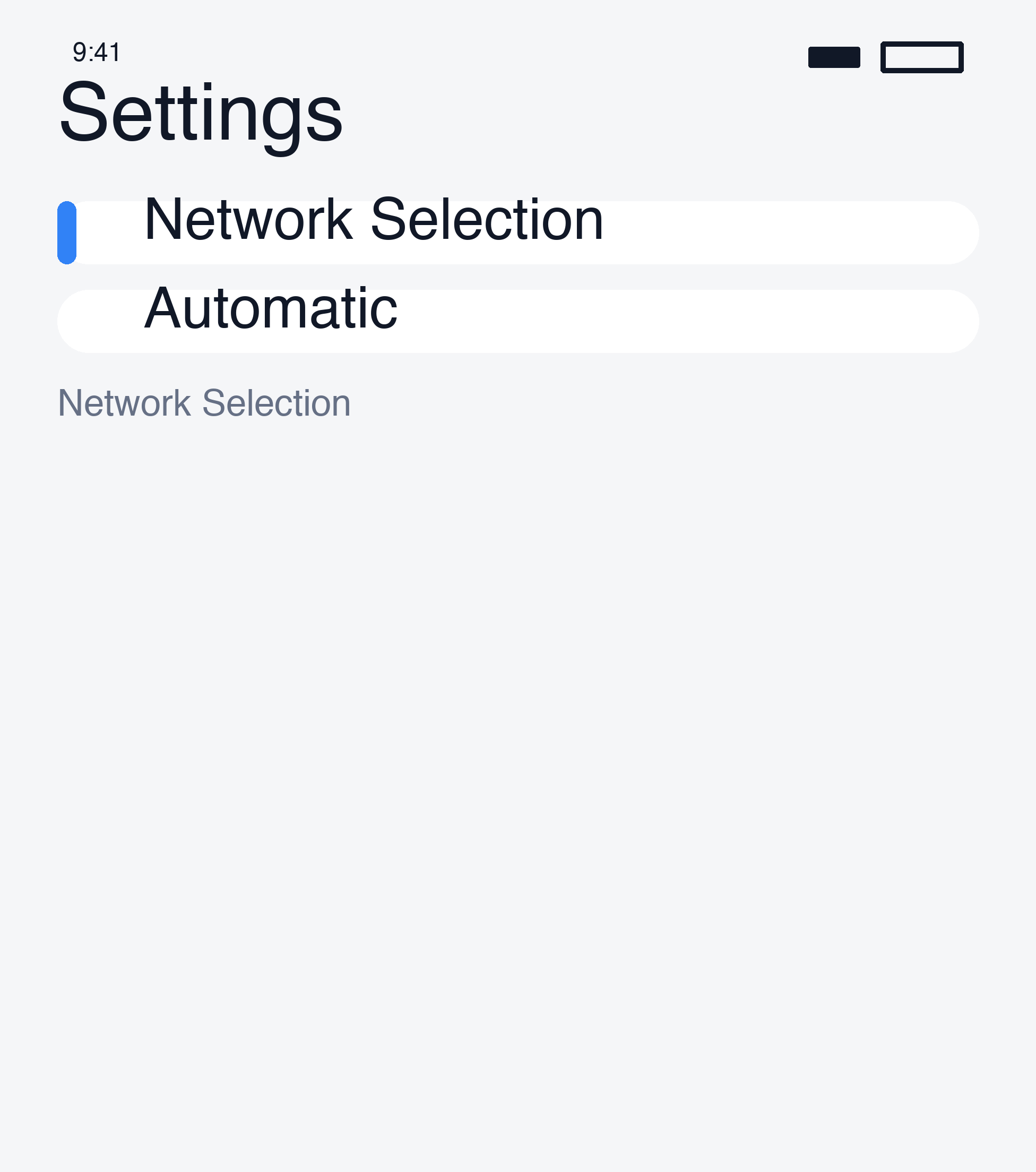
  • Network: use automatic selection first. If instructed to select manually, choose a carrier supported by your plan; the strongest signal is not necessarily eligible.
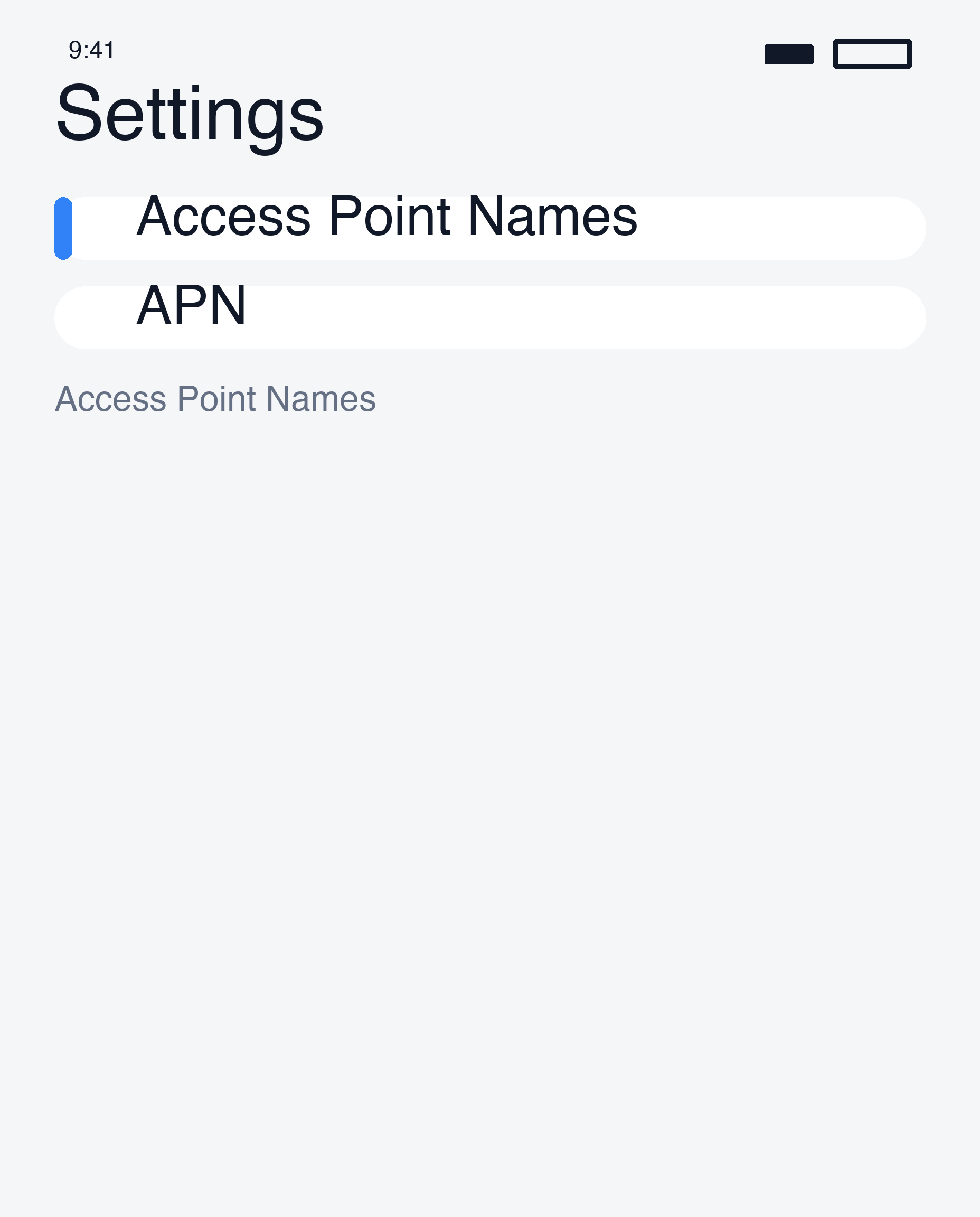
Use only supplied APN and network settings · 1
Use only supplied APN and network settings · 2

Contact support

Send support your order number, country, device model, error message and settings screenshots. Keep QR and activation codes out of public posts.

Do not start with a network reset or eSIM deletion. You may lose saved settings or need a replacement eSIM.

Apple troubleshooting

Als NächstesAlle Anleitungen

Brauchst du noch Hilfe?

Unser Support-Team hilft dir dabei.

Hilfe erhalten

Zu einem Schritt springen

  1. 01Installation error or no data?
  2. 02Check the line and roaming
  3. 03Check the plan and signal
  4. 04Use only supplied APN and network settings
  5. 05Contact support

Weiterlesen

Make and receive calls abroadConnect to VPN in the appSwitch back after your tripConnect on arrival

NBase Korea Co., Ltd.

Geschäftsführer: Shinbae Kong

Unternehmensregisternr.: 401-87-00956

Versandhandelsregistrierung: 2025-Yongin Suji-2082

902, Bldg A, 767 Sinsu-ro, Suji-gu, Yongin-si, Gyeonggi-do (Dongcheon-dong, Bundang Suji U-TOWER)

US-Hauptsitz: NBASE CORP. · Corporate Park, Irvine, CA 92606, USA

esimoa — Travel eSIM, Calls & VPN - eSIM, calls & VPN for travelers — all in one app | Product Hunt

Schnellzugriff

eSIM-Tarife vergleichenApp herunterladenGroßbestellungAnleitungUnsere PartnerPartnerschaftÜber uns

Kundenservice

Support-ChatErstattung beantragen

E-Mail: support@esimoa.com

Rechtliches

NutzungsbedingungenDatenschutzerklärungLiefer- und ErstattungsbedingungenEntwicklerAPI-Dokumentation

© 2026 esimoa. Alle Rechte vorbehalten.