
How to Install eSIM on Android
Sekilas
Install eSIM on Android (Samsung Galaxy focus) and configure for travel.
TL;DR (Galaxy path)
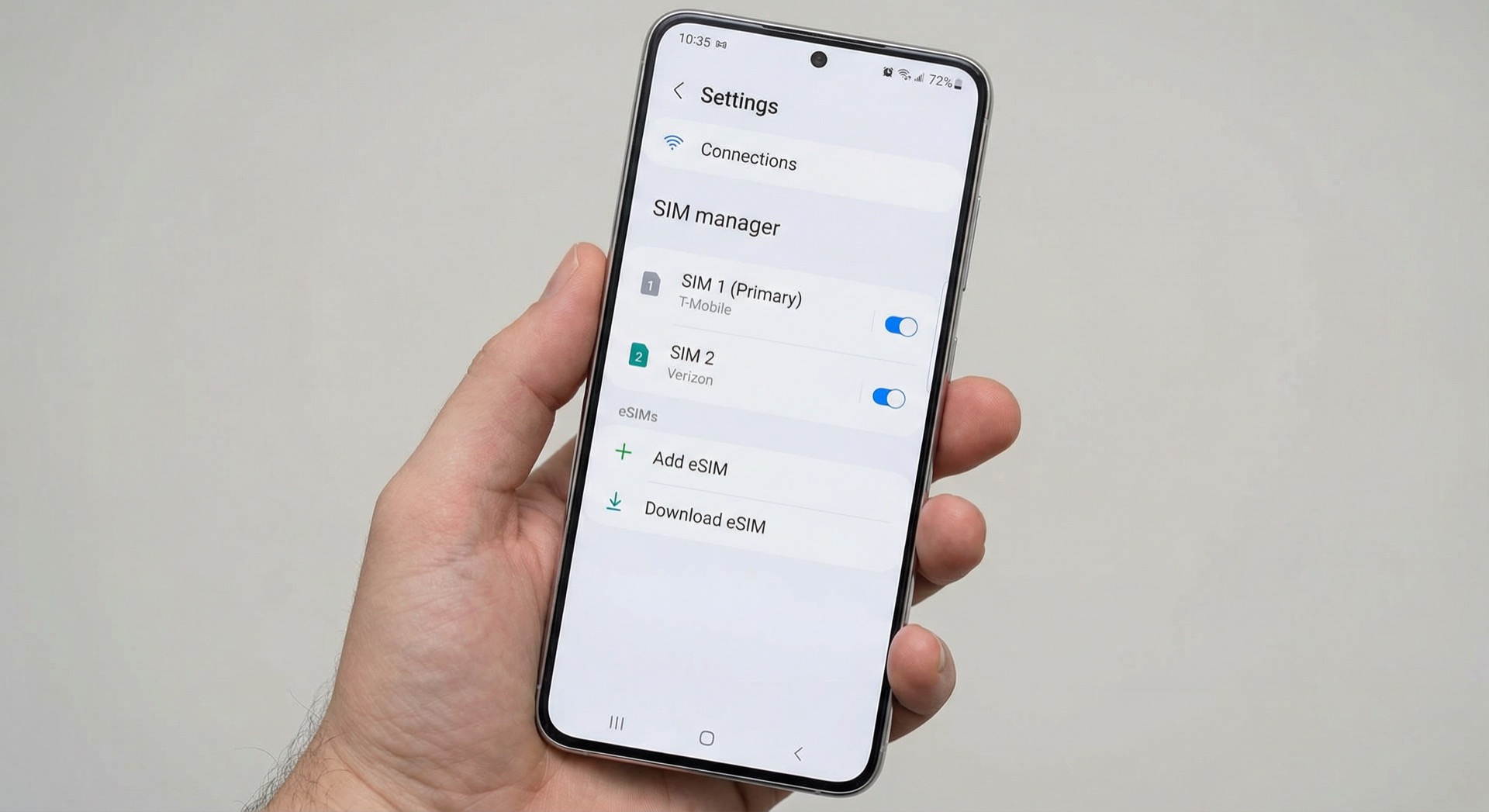
- Settings > Connections > SIM manager > Add eSIM
- eSIM must be provisioned by the provider/carrier first.
- Profile download is done when the device is on mobile network or Wi‑Fi.
- If data doesn’t work abroad, check data roaming (travel eSIM) ON and mobile data line (eSIM) first.
Before installing
- eSIM support: Confirm EID or SIM manager has eSIM menu
(Guide: eSIM compatible devices) - Carrier unlock: Locked devices may not work properly with overseas eSIMs.
- Deletion: Many eSIMs are one-time install only.
Samsung Galaxy (One UI) — official steps
Samsung’s flow for Galaxy eSIM:
1) First: “Activate” eSIM plan with provider/carrier
Travel eSIMs often give QR/code right after purchase; domestic carrier eSIM may require separate sign-up/activation.
2) Download eSIM profile (Settings path)
- Open Settings.
- Tap Connections.
- Open SIM manager.
- Tap Add eSIM.
- Add profile via Scan QR code or Enter manually (SM‑DP+).
3) Activate eSIM and set label
After adding, activate the eSIM in SIM manager and give it a name (e.g. Travel / Data) for easier management.
4) Set “data on eSIM” (travel setup)
For travel, this is usually best:
- Calls/SMS: Home USIM (main)
- Mobile data: Travel eSIM
If data goes through home USIM abroad, you may get high roaming charges. See How to turn off data roaming on home SIM if needed.
Galaxy notes (Samsung official FAQ)
1) “Delete eSIM” ≠ “Cancel plan”
Samsung states: deleting eSIM in device settings does not cancel the plan; it only removes the eSIM profile from the device. To cancel or suspend the plan, contact the carrier/provider or use their website.
2) Dual-SIM (DSDS) behavior
With dual SIM, data on the other line may drop during a call, or you may need data switching. Turning on data switching can lead to charges (especially roaming) in some cases.
Google Pixel (summary)
- Go to Settings > Network & internet > SIM.
- Select Add SIM (+) or Download eSIM.
- Scan QR or enter manually.
- After install, set data SIM to eSIM and turn on data roaming if needed.
After install (abroad checklist)
- Is mobile data line set to eSIM?
- Is data roaming ON for travel eSIM?
- Is network selection (auto/manual) working?
- Does the provider require APN?
If data doesn’t work, see When eSIM data doesn’t work abroad for step-by-step fixes.
References (official)
- Samsung: Galaxy eSIM feature and usage
- Samsung: USIM/eSIM dual SIM settings
