
eSIM Not Working? Complete Troubleshooting Guide
نظرة سريعة
eSIM not activating, no data connection, or installation failed? Comprehensive troubleshooting guide covering 20 common issues with step-by-step solutions.
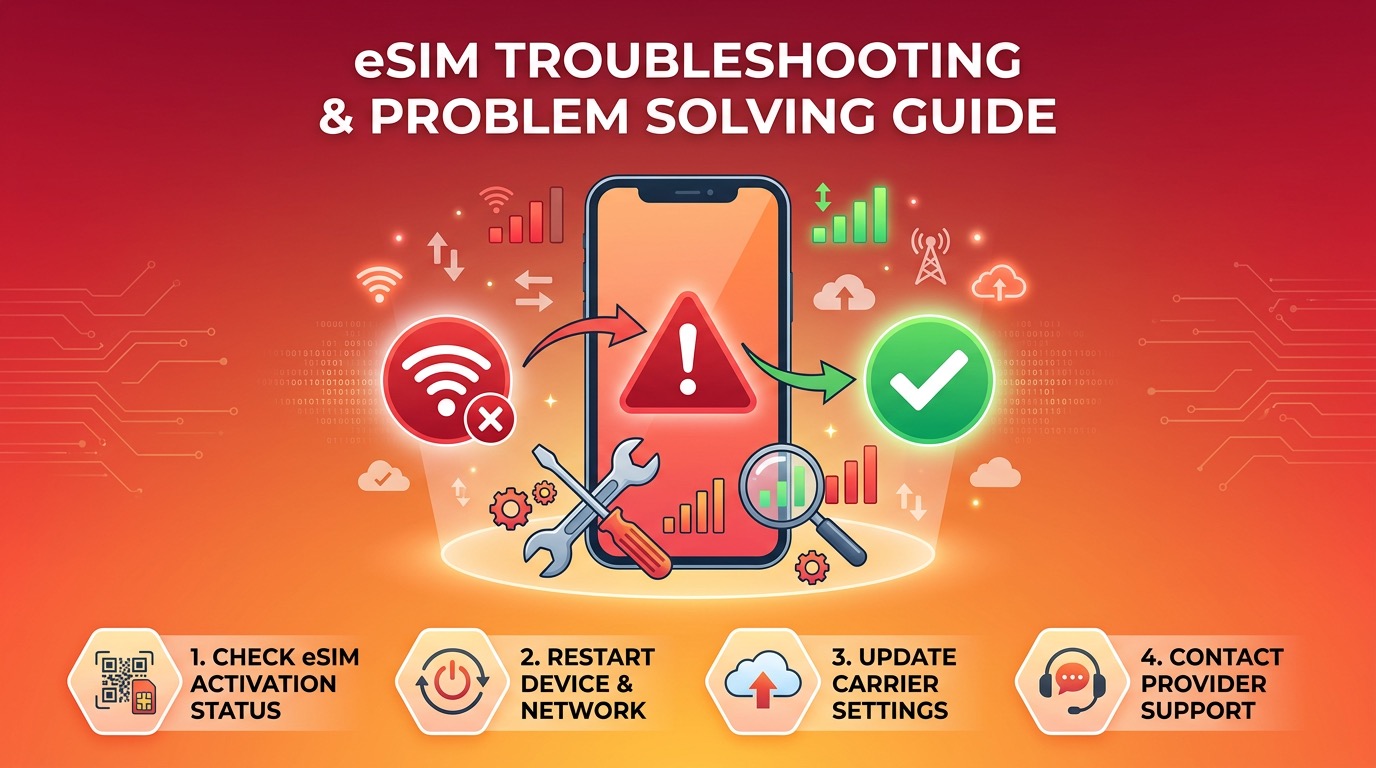
eSIM Not Working? Complete Troubleshooting Guide
Bought an eSIM but it's not activating? Installed it but no data? This guide covers 20 common eSIM problems with their causes and step-by-step solutions.
🚨 Top 5 Most Common eSIM Issues
| Rank | Symptom | Main Cause |
|---|---|---|
| #1 | No data connection | Data roaming off, wrong APN |
| #2 | Installation failed | Expired QR code, unstable Wi-Fi |
| #3 | eSIM not recognized | Device lock, unsupported model |
| #4 | No signal after install | Not connected to local carrier network |
| #5 | QR code won't scan | Camera issue, low QR resolution |
🔧 Solutions by Problem Type
1. eSIM Installation Fails
"An error occurred" after scanning QR code
① Expired QR Code
- Most eSIM QR codes are valid for 24–72 hours
- Fix: Contact your eSIM provider to request a new QR code
② Unstable Wi-Fi
- Fix: Switch to a different Wi-Fi network and retry
③ Carrier-Locked Device
- A carrier-locked phone cannot accept eSIMs from other carriers
- Fix: Contact your carrier to unlock your device
④ Outdated OS
- Fix: Update to the latest iOS or Android version
⑤ Too Many eSIMs Stored
- iPhone 15/14: max 8; Galaxy S24: max 5
- Fix: Delete unused eSIMs first
2. eSIM Installed But No Data
This is the #1 most common issue!
① Data Roaming is OFF
iPhone:
- Settings → Cellular
- Tap the installed eSIM
- Toggle Data Roaming ON ✅
Samsung Galaxy:
- Settings → Connections → Mobile Networks
- Toggle Data Roaming ON ✅
② Wrong Default Data Line
iPhone: Settings → Cellular → Cellular Data → select eSIM
Galaxy: Settings → Connections → SIM Manager → Mobile Data → select eSIM
③ Incorrect APN Settings
- Some eSIMs require manual APN configuration
- Check your eSIM provider's APN settings and enter them manually
iPhone APN: Settings → Cellular → Cellular Data Network → enter APN
Galaxy APN: Settings → Connections → Mobile Networks → Access Point Names → add new
3. eSIM Shows "No SIM" or Not Recognized
Fix in order:
- Restart device — resolves most cases
- Toggle Airplane Mode — turn on for 15 seconds, then off
- Check eSIM is enabled — go to Settings and confirm the eSIM line is toggled ON
- Select carrier manually — Settings → Cellular/Mobile Networks → Carrier → manual selection → choose local carrier
- Check date and time — ensure it's set to automatic
4. QR Code Won't Scan
- Increase screen brightness on the device displaying the QR code to maximum
- Adjust distance — hold the camera 15–30 cm from the QR code
- Save QR as image and import — some devices allow selecting an image file
- Use manual entry — enter the SM-DP+ address and activation code manually
- Restart camera app — force close and reopen
5. eSIM Suddenly Stops Working Overseas
① Data Limit Reached
- Fix: Check remaining data in your provider's app and purchase more
② Need to Switch Local Carrier
- Fix: Manually select a different local carrier in settings
③ eSIM Validity Expired
- Fix: Renew or purchase a new eSIM plan
④ Local Network Outage / Dead Zone
- Fix: Move to a different location and try again
📋 Quick Troubleshooting by Symptom
| Symptom | Check in Order |
|---|---|
| Installation fails | QR expiry → Wi-Fi → device unlock → OS update |
| No data | Data roaming → default data line → APN settings |
| Not recognized | Restart → airplane mode → manual carrier select |
| Suddenly disconnected | Data balance → validity period → carrier switch |
| QR won't scan | Brightness max → distance → manual code entry |
✅ Prevention Checklist (Do Before Travel)
- Confirm your device supports eSIM
- Verify device is carrier-unlocked
- Update to latest iOS/Android
- Install eSIM over stable Wi-Fi
- Install before QR code expires
- Enable Data Roaming immediately after install
- Set eSIM as Default Data line
- Test data connection before departure
Contact your eSIM provider's support with your order number, device model, OS version, and a description of the error for the fastest resolution. Buy eSIM at esimoa.com →
